> ## Documentation Index
> Fetch the complete documentation index at: https://docs.bult.ai/llms.txt
> Use this file to discover all available pages before exploring further.
# n8n automation
> How to Deploy an n8n Template on Bult.ai and Build a Telegram AI Assistant with Gmail, Google Tasks, and Google Contacts
### Overview
Automation tools like n8n make it easy to connect apps and AI models into a single assistant that manages your daily work. Combined with [Bult.ai](http://Bult.ai), you can deploy n8n in minutes, link it to Telegram, Gmail, Google Tasks, Google Contacts, and Calendar, and have your own personal AI secretary running in the cloud.
This updated guide uses the [******official Bult.ai n8n workflow repository******](http://Bult.ai) instead of the older template library, giving you more features and better defaults.
### Step 1: Deploy n8n on [**Bult.ai**](http://Bult.ai)
1. Sign up at [bult.ai](http://bult.ai).
2. Go to your dashboard → click **New Project**.
3. Give it a name and **open the project**.
4. Click **Create**, then go to **Templates → n8n**.
5. Click **Apply**, then **Deploy**.
6. Once deployed, you’ll see a public link like: [https://your-project-name.fin1.bult.app/](https://your-project-name.fin1.bult.app/)
7. Follow that link, sign up for n8n, click **Send activation link**, check your email, copy the code, go to **Plan & Usage**, and paste it.
Now your cloud n8n editor is live.
### **Step 2: Import the Workflow**
You can start from scratch or import a ready-made workflow. You can find many Workflow Templates [here](https://n8n.io/workflows/).
1. In this example I will use Personal Telegram Assistant Bot from this [GitHub repo](https://github.com/bultcloud/n8n-workflows). Open the repository and copy the contents of bult-assistant.json.
2. In your n8n, click Create Workflow and paste the template (Ctrl+V).
Now your workflow listens for Telegram messages.\
If you send **text**, it goes straight to ChatGPT.\
If you send **voice**, it’s transcribed to text first.\
The AI model decides whether to check Gmail, Google Tasks, Google Contacts, or Calendar — then replies to you directly on Telegram.
### **Step 3: Connect Telegram**
Now we need to set up credentials.
1. Open **Telegram** and search for **@BotFather**.
2. Send `/start`and then `/newbot` and follow the setup.
3. Copy the **API token** BotFather gives you.
4. In n8n, open the **Telegram Trigger** node and paste the token into a new Telegram credential.
That connects your bot to n8n.
### **Step 4: Connect Google Services**
1. In n8n, open a **Gmail** node and create a new credential.
2. Copy the **Redirect URI** shown in n8n (it will look like your Bult URL + `/rest/oauth2-credential/callback`).
3. Go to [Google Cloud Console.](https://console.cloud.google.com/)\
• Create a **new project**.\
• Go to **APIs & Services → OAuth Consent Screen** and fill the required info.\
• Click **Create OAuth Client ID** → choose **Web Application**.\
• Go to **Credentials** → copy the **Client ID** and **Client Secret**, then paste them into n8n.\
• Click **Connect**, sign in with Google, and approve.
4. Go to Clients, pick your Client ID. Copy and paste Client ID and Client Secret from Google Cloud to N8N.
5. Click **Connect**, sign in with your Google account, and approve the permissions. Repeat the same for ****Google Calendar, Google Tasks and Google Contacts (Google People API).****
6. In Google Cloud, type Gmail, Calendar, Tasks and Google People in the search bar and enable their APIs.
### **Step 5: Test the bot (text and voice)**
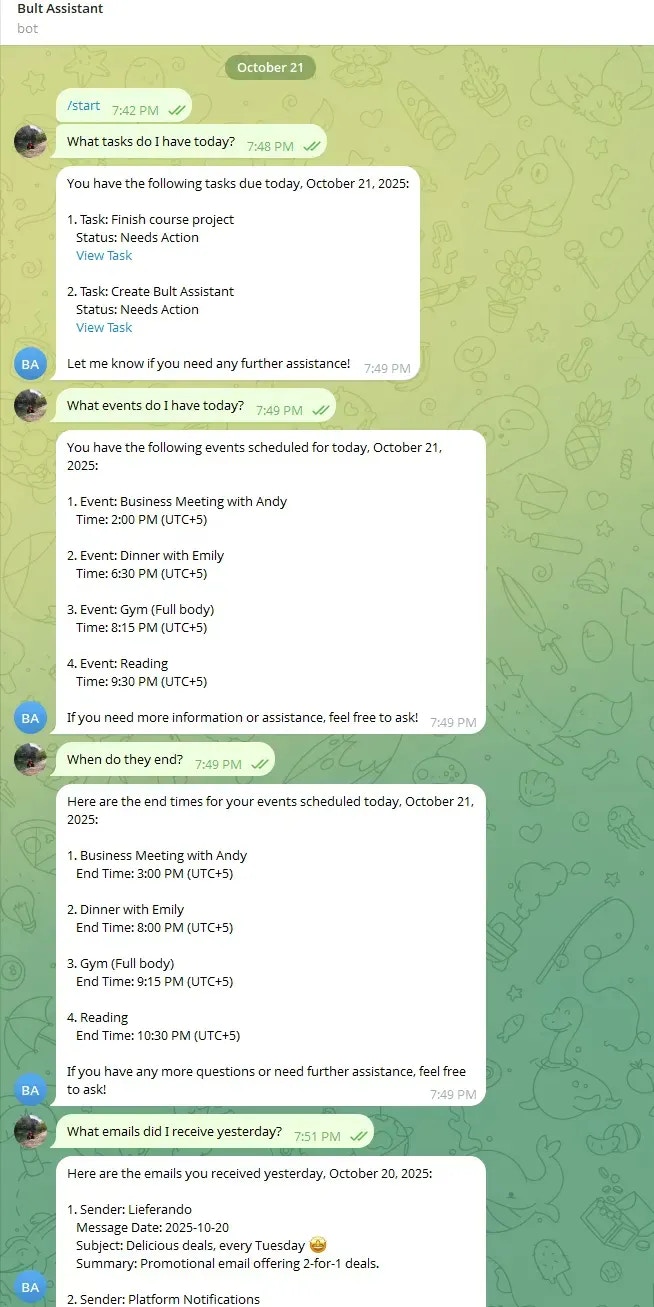
Open your Telegram bot → tap **Start**. In n8n click **Execute Workflow** (for testing). Send a message:
* Text: “What tasks do I have today?”, “What events do I have today?”, “When do they end?”, “What emails did I receive yesterday?”
* Voice: speak the same prompts; the flow transcribes, routes to Gmail/Tasks/Contacts/Calendar, and replies.
If replies look good, switch the workflow to **Active** so it answers automatically without pressing Execute.
### **Conclusion**
This workflow shows how easily you can automate daily routines using n8n. Once deployed on Bult, you can extend or modify it to fit your own needs.
For example, you can add Google Sheets node and work with them through the Telegram Chat. N8N gives you full flexibility to connect tools, trigger actions, and create your own assistant for any workflow.
### **Links**
* [GitHub repo](https://github.com/bultcloud/n8n-workflows)
* [Youtube step-by-step tutorial](https://youtu.be/0iKt4KVC38w?si=9OnasutDGD3saI4X)
 ### **Conclusion**
This workflow shows how easily you can automate daily routines using n8n. Once deployed on Bult, you can extend or modify it to fit your own needs.
For example, you can add Google Sheets node and work with them through the Telegram Chat. N8N gives you full flexibility to connect tools, trigger actions, and create your own assistant for any workflow.
### **Links**
* [GitHub repo](https://github.com/bultcloud/n8n-workflows)
* [Youtube step-by-step tutorial](https://youtu.be/0iKt4KVC38w?si=9OnasutDGD3saI4X)
### **Conclusion**
This workflow shows how easily you can automate daily routines using n8n. Once deployed on Bult, you can extend or modify it to fit your own needs.
For example, you can add Google Sheets node and work with them through the Telegram Chat. N8N gives you full flexibility to connect tools, trigger actions, and create your own assistant for any workflow.
### **Links**
* [GitHub repo](https://github.com/bultcloud/n8n-workflows)
* [Youtube step-by-step tutorial](https://youtu.be/0iKt4KVC38w?si=9OnasutDGD3saI4X)